Livestream Fan Moderators Guide

This guide explains how to add, manage, and use Livestream Moderators during a creator livestream. It ensures moderators are assigned correctly and that team members understand the actions moderators can take to help manage the live chat and audience behavior.
Key Steps
1. Add Moderators Before Going Live
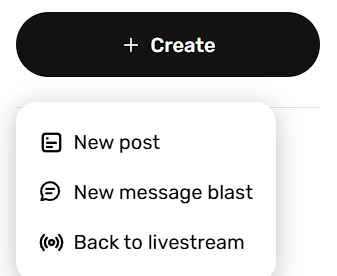
- Open the Create flow for your livestream.
- Locate the new Moderators section.
- Expand the accordion to reveal the moderator entry field.
- Search for the fan’s username and add them as a moderator.
- You can add up to five moderators before starting the livestream.
2. Confirm Who Can Be Added as a Moderator
- Review the eligibility rules for moderators.
- Currently moderators are only initially limited to followers.
- The feature is being expanded so any fan can be added, even if they do not follow you.
- Use this flexibility to assign trusted fans who can help manage the stream.
3. Start the Livestream and Verify Moderator Access
- Enter your livestream title and start the broadcast.
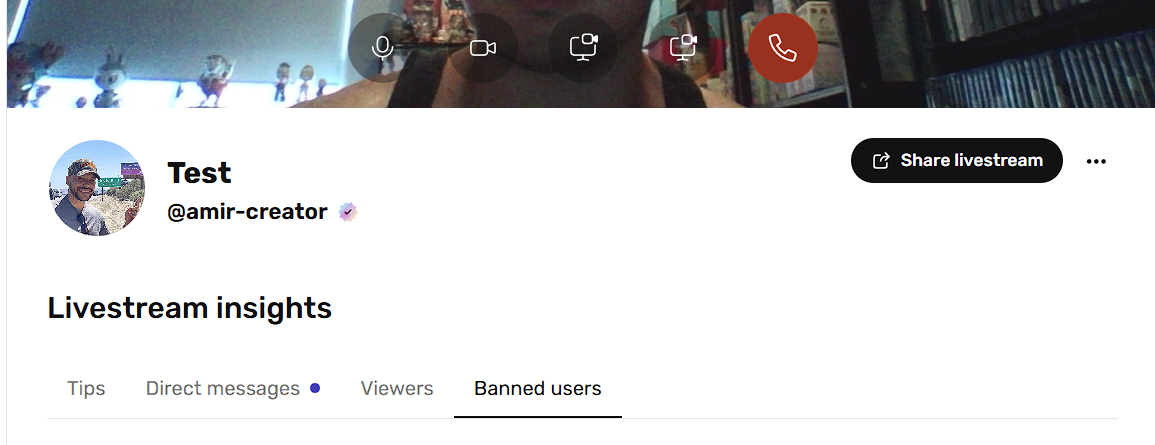
- Once live, check the bottom area of the livestream interface.
- Confirm that the moderator list is visible.
- Verify that other live management tools, such as multi-band users and direct messages, are also accessible as shown in the interface.
4. Promote a Viewer to Moderator During the Livestream
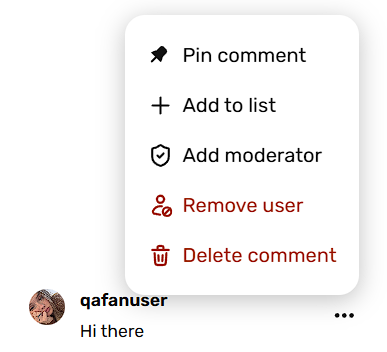
- While the livestream is active, locate the viewer’s comment.
- Click the three dots next to the user’s name.
- Select Add moderator.
- Confirm the user now has moderator access and can help manage the stream.
5. Identify Moderators by Their Badge
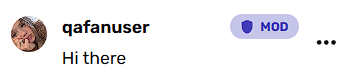
- Look for the mod badge next to each moderator’s name.
- Use the badge to quickly distinguish moderators from regular viewers.
- Verify that the correct users have been assigned moderator status.
6. Manage Moderator Limits and Remove Access When Needed
- Keep in mind that only five moderators can be active at one time.
- If you need to replace someone, remove moderator status from an existing moderator.
- Use the same menu path used for promotion to demote them back to a regular viewer.
7. Use Moderator Tools to Control the Livestream
- Moderators can help manage chat and audience behavior.
- Available actions include:
- Pin comments
- Delete comments
- Ban or kick users
- Use moderators to reduce the creator’s workload and keep the livestream organized.
8. Understand the Effect of Kicking or Banning Users
- If a moderator kicks a user, that action will appear in the banned user section of the livestream.
- A user that is banned can't go back to the livestream but you can unban them by going to the banned users section of your livestream and clicking "unban"
- Unbanning is just for kicking on the said livestream, if you want to block a fan entirely, you would have to block them outside of the livestream so that they're not able to see any of your future activities.
- Review banned users as needed to maintain moderation records.
- Ensure moderators understand when to use kick/ban actions appropriately.
Cautionary Notes
- Do not exceed five moderators at any time.
- Only assign moderator access to trusted users who understand your livestream rules.
- Be careful when promoting or demoting users, since these actions affect their ability to manage the stream.
- Use ban/kick actions responsibly, as they directly impact viewer access and appear in the banned user list.
Tips for Efficiency
- Pre-select trusted fans before going live so moderator setup is quick.
- Use the mod badge to confirm moderator status at a glance.
- Assign moderators early in the livestream to help manage comments from the start.
- Keep a backup list of potential moderators in case you need to replace someone quickly.
- Train moderators on when to pin, delete, kick, or ban to keep moderation consistent.