Multi-Streaming with OBS: A Complete Setup Guide


Creators can now multi-stream on Fanfix using OBS—so you can go live on Fanfix while streaming to platforms like Twitch or YouTube at the same time. With a single OBS setup, you can reach multiple audiences without changing your existing workflow.
Here’s how to set it up:
Step 1: Start Your Livestream on Fanfix
- Go to Create → Livestream
- Add your Title
- Choose your Access settings (e.g., free, paid, comments on/off)
- Set your Tipping preferences (e.g., enable tips, add a tip goal if needed)
This sets the foundation for your livestream. Next, you’ll connect OBS and set up multi-streaming.
Step 2: Select RTMP in Video & Audio controls
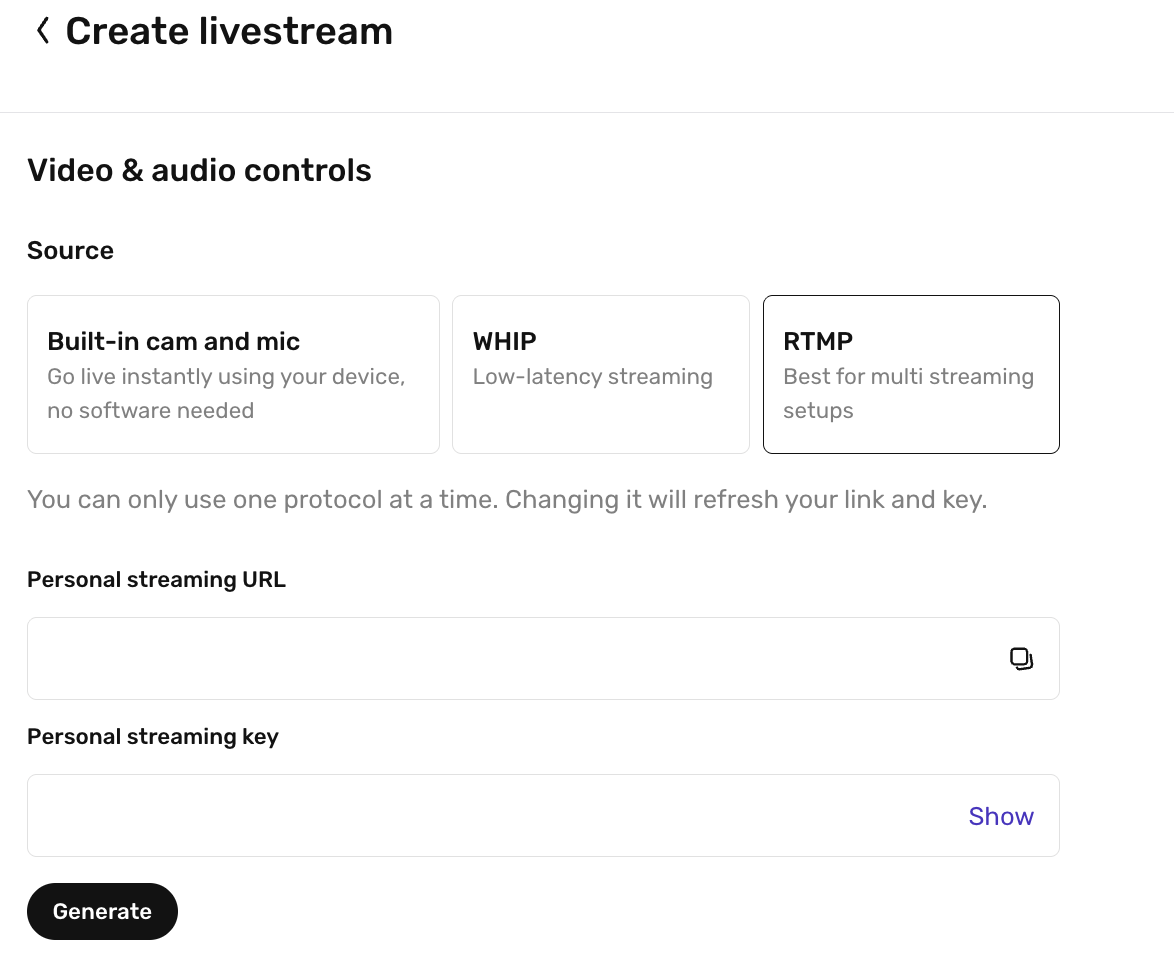
In the Video & audio controls section:
- Under Source, select RTMP
- Click Generate to create your Personal Streaming URL and Streaming Key
- Copy both values which will connect Fanfix to OBS.
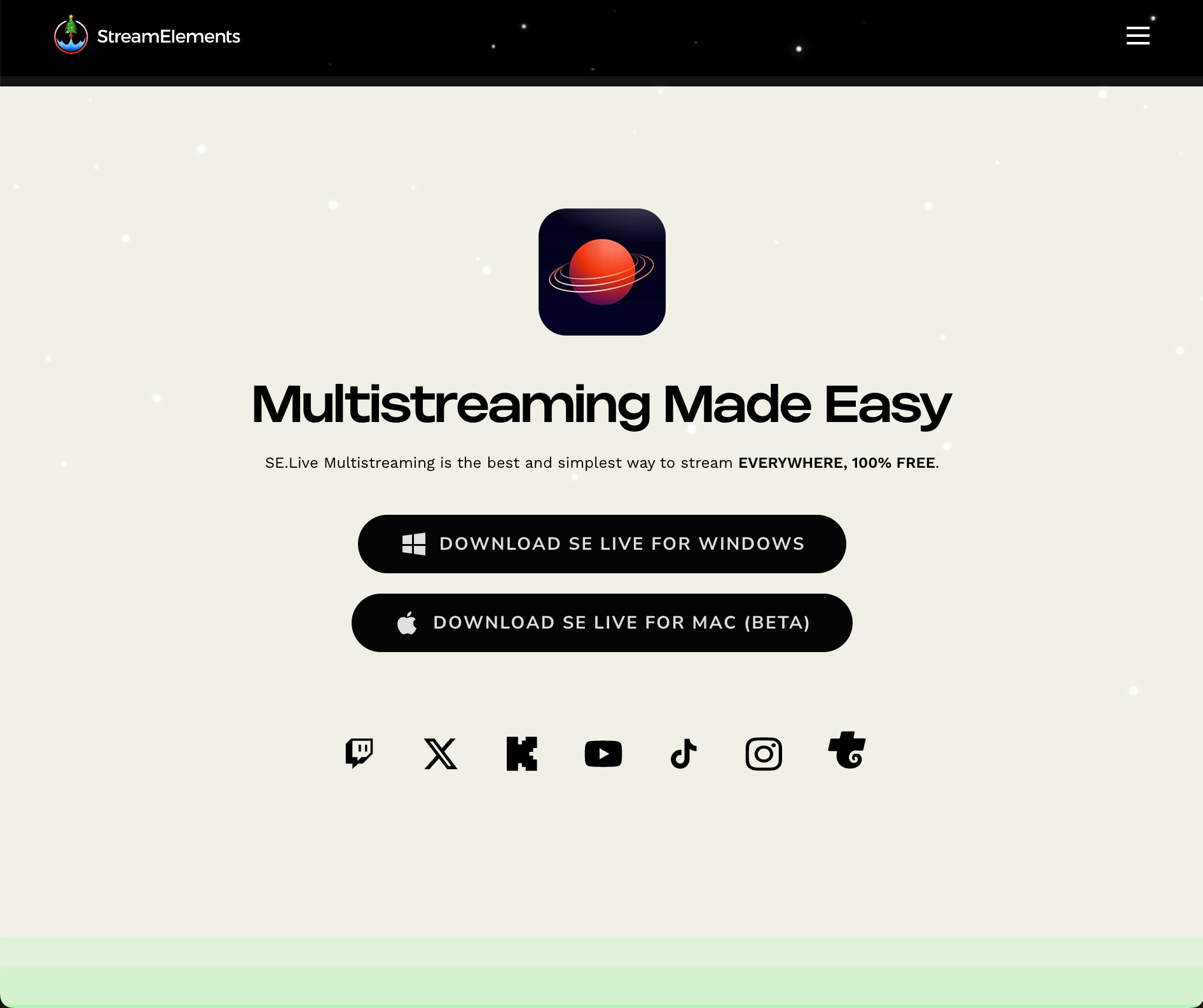
Step 3: Download the Multi-Stream OBS Plug In
- Go to https://streamelements.com/selive
- Download SE.Live Multistreaming for Windows or Mac
SE.Live is an OBS plug-in that lets you multi-stream directly from OBS.
Step 4: Configure OBS and Multi-Stream
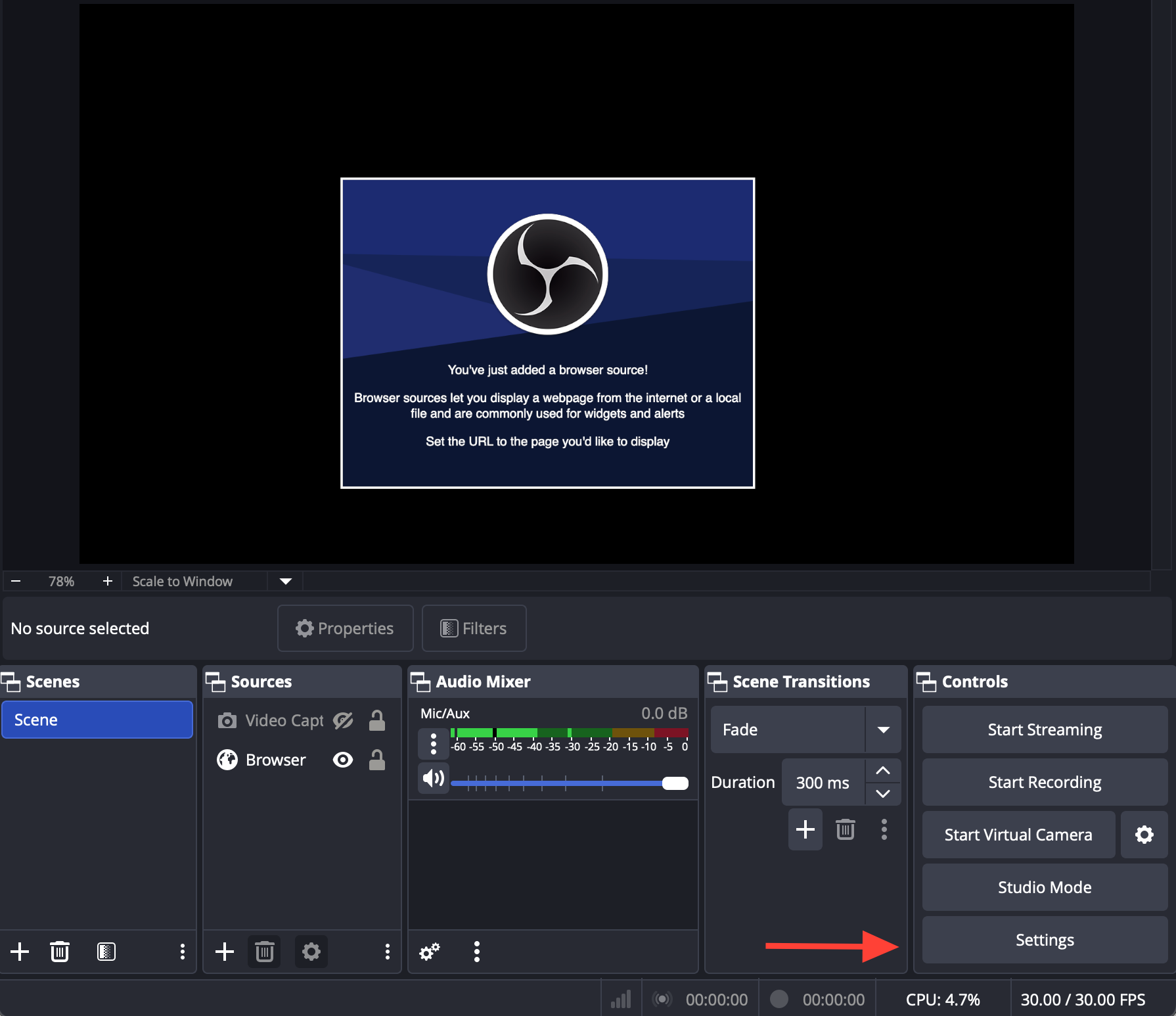
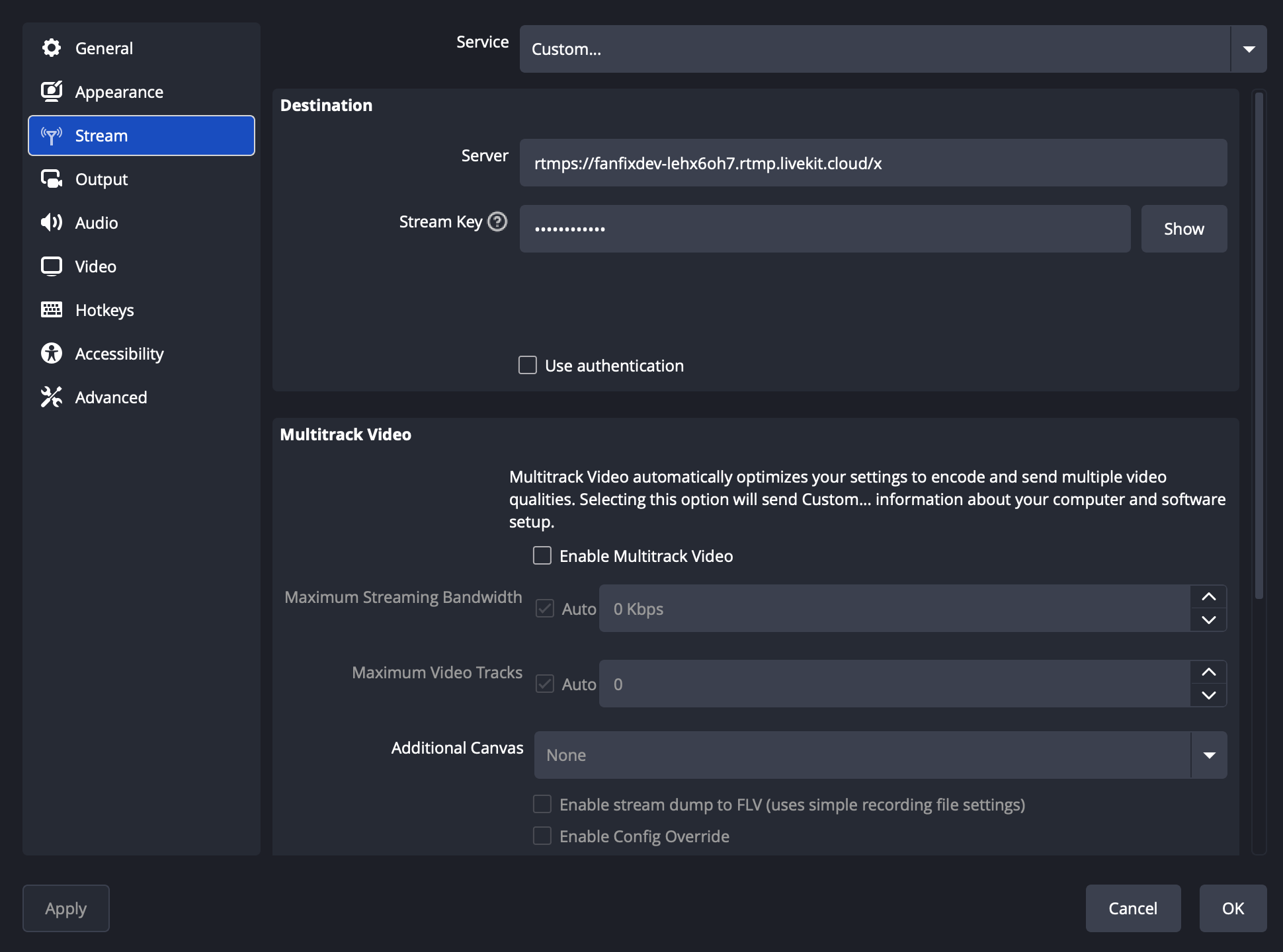
- Go to Settings → Stream
- Set Service to Custom
- Paste your Personal Streaming URL into the Server field
- Paste your Personal Streaming Key into the Stream Key field
- Click OK
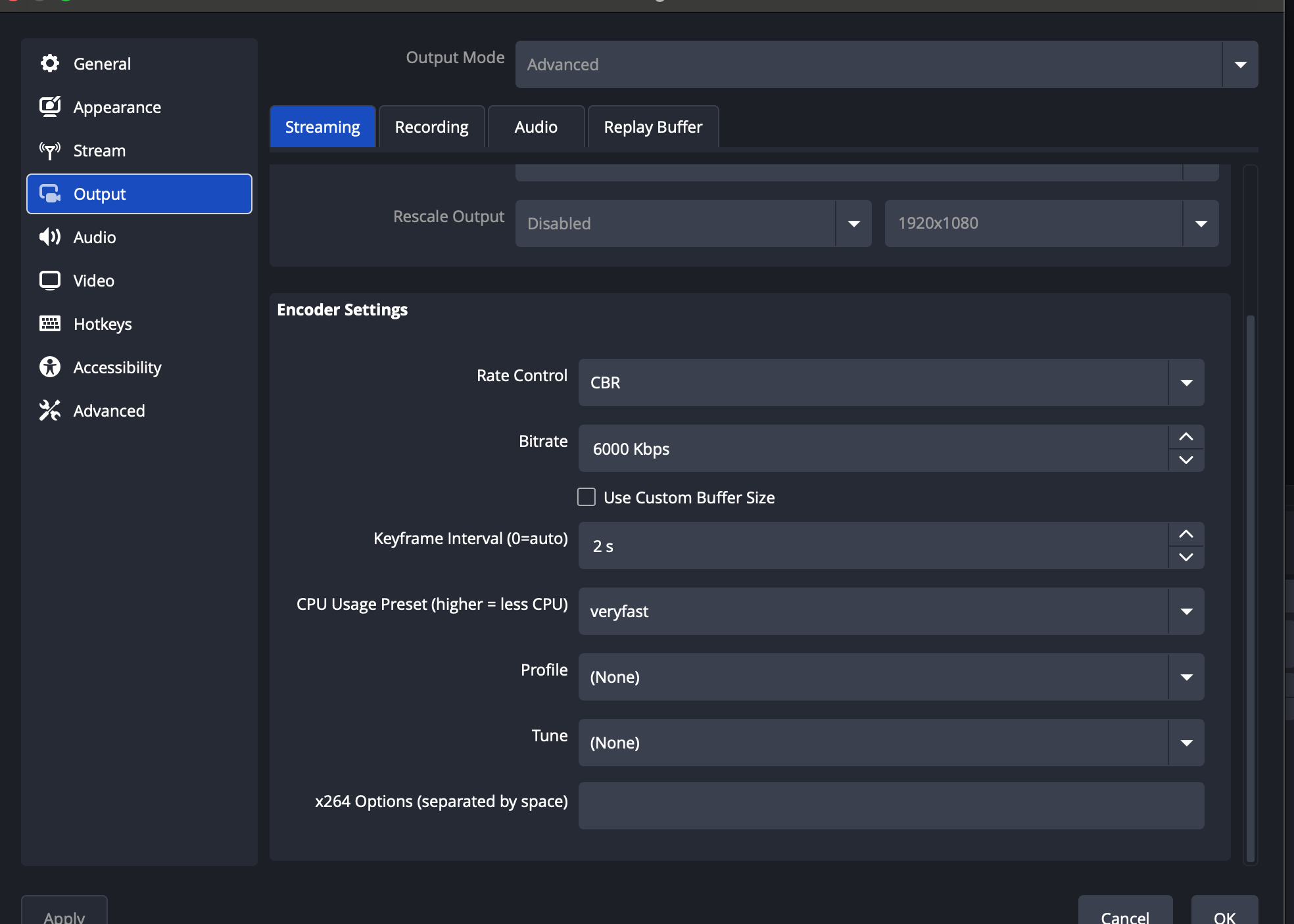
- Go to Settings → Output
- Adjust Keyframe Interval to 2s
- Click OK
Once this is set, OBS is linked to your Fanfix livestream.
Step 5: Set Up Other Platforms
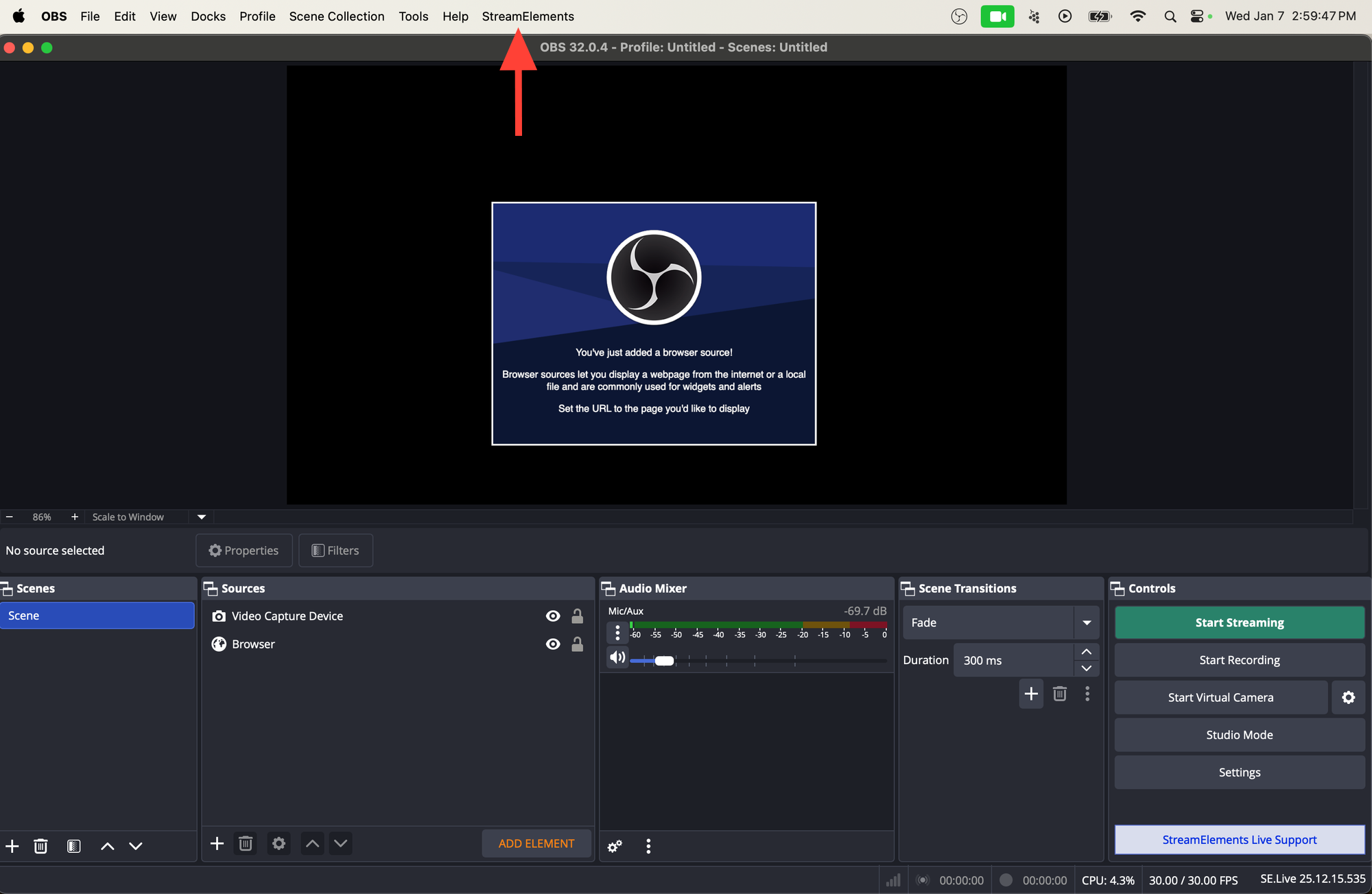
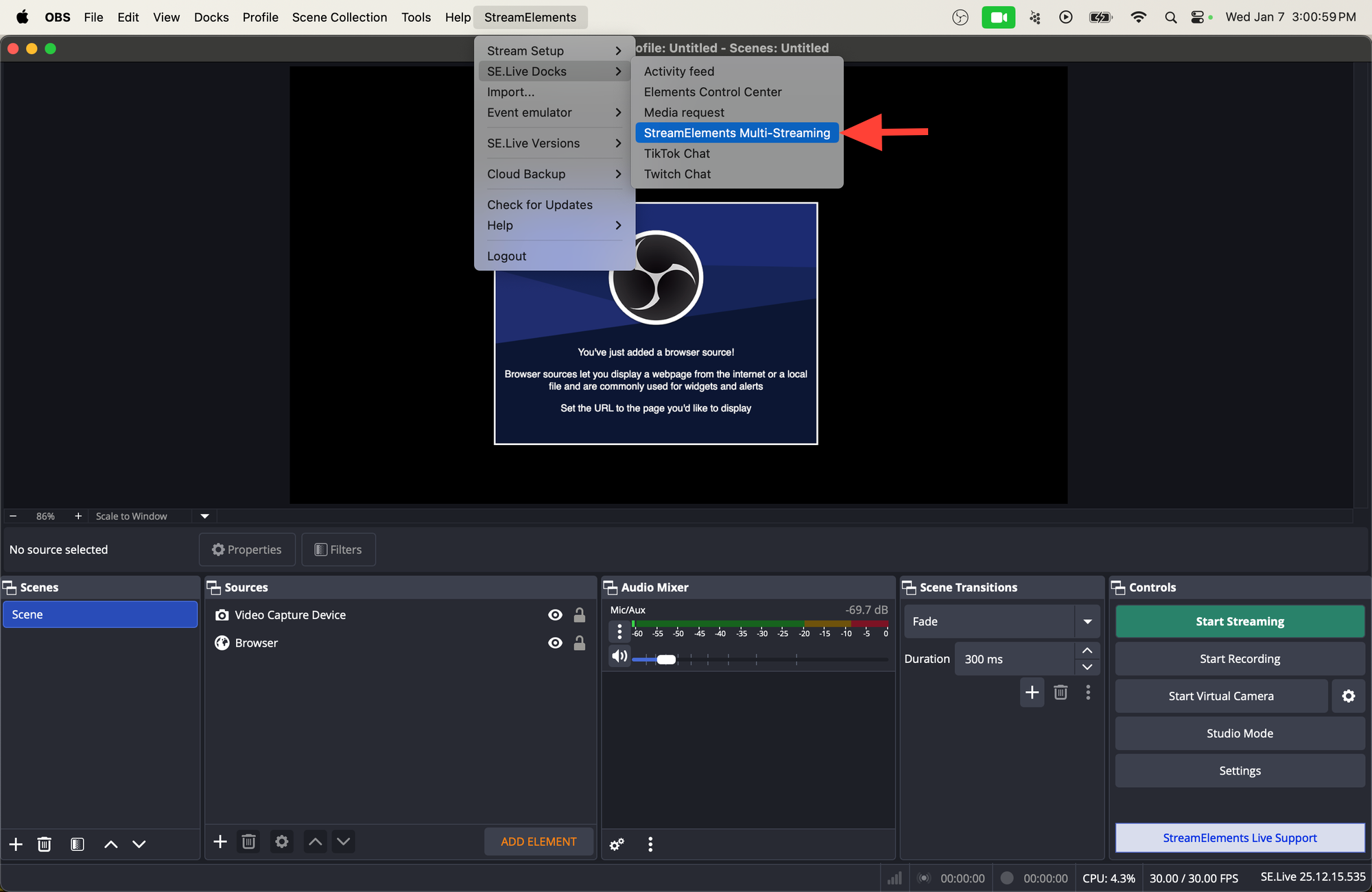
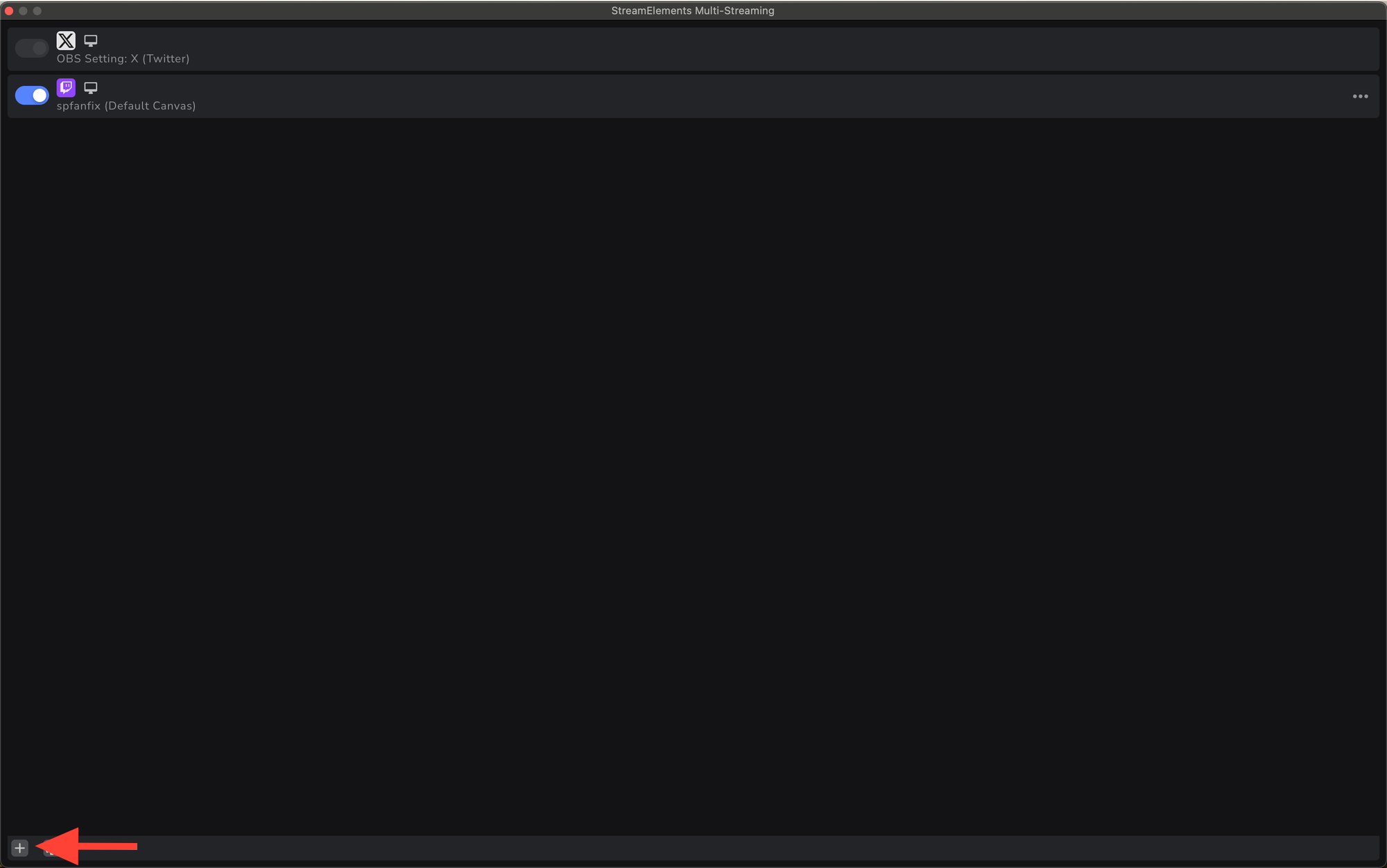
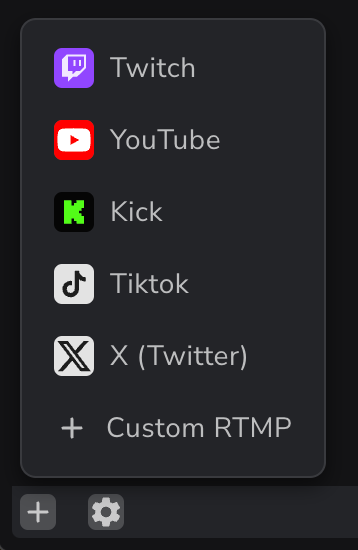
- Go to Stream Elements → SE.Live Docks → StreamElements Multi-Streaming
- Add any additional platforms to stream to (i.e. Twitch, YouTube, etc.)
Once your server URL and stream key are saved in OBS and you’ve added your additional platforms, you’re ready to go live.
Add your camera, mic, and any overlays you want, then click Start Streaming. Fanfix and other selected platforms will detect your feed instantly.
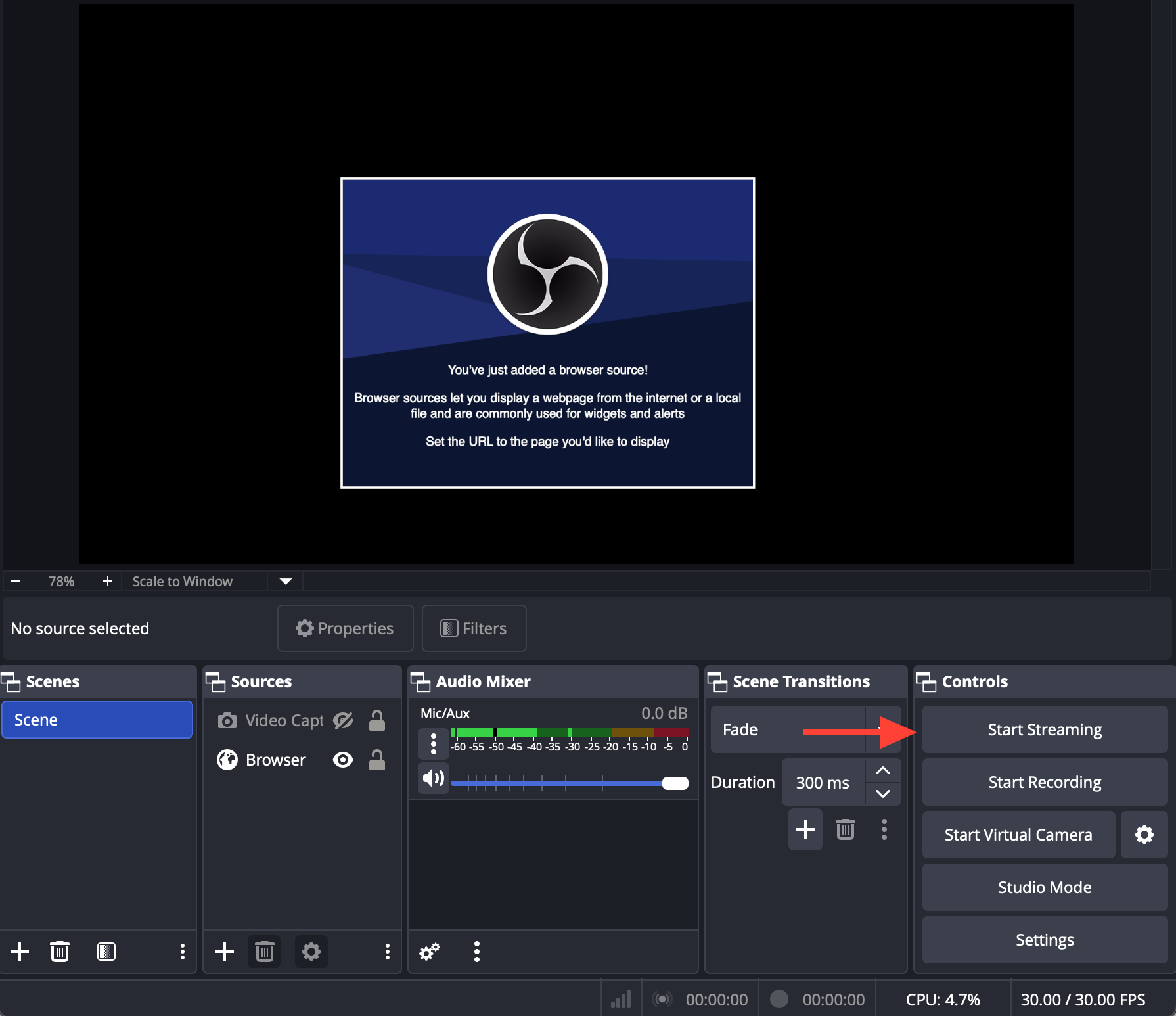
Your Fanfix stream will appear as pending until you click Start livestream in the Fanfix app.
That’s It — You’re Live
We’ll continue improving OBS support, so keep an eye out for updates—and don’t hesitate to reach out if you have questions.